Getting Started
Steplore turns how people use your product into documentation and support — automatically. This guide walks you through both paths: recording a step-by-step guide, and building an AI chatbot from your app's own content.
Step 1: Install the Steplore Browser Extension
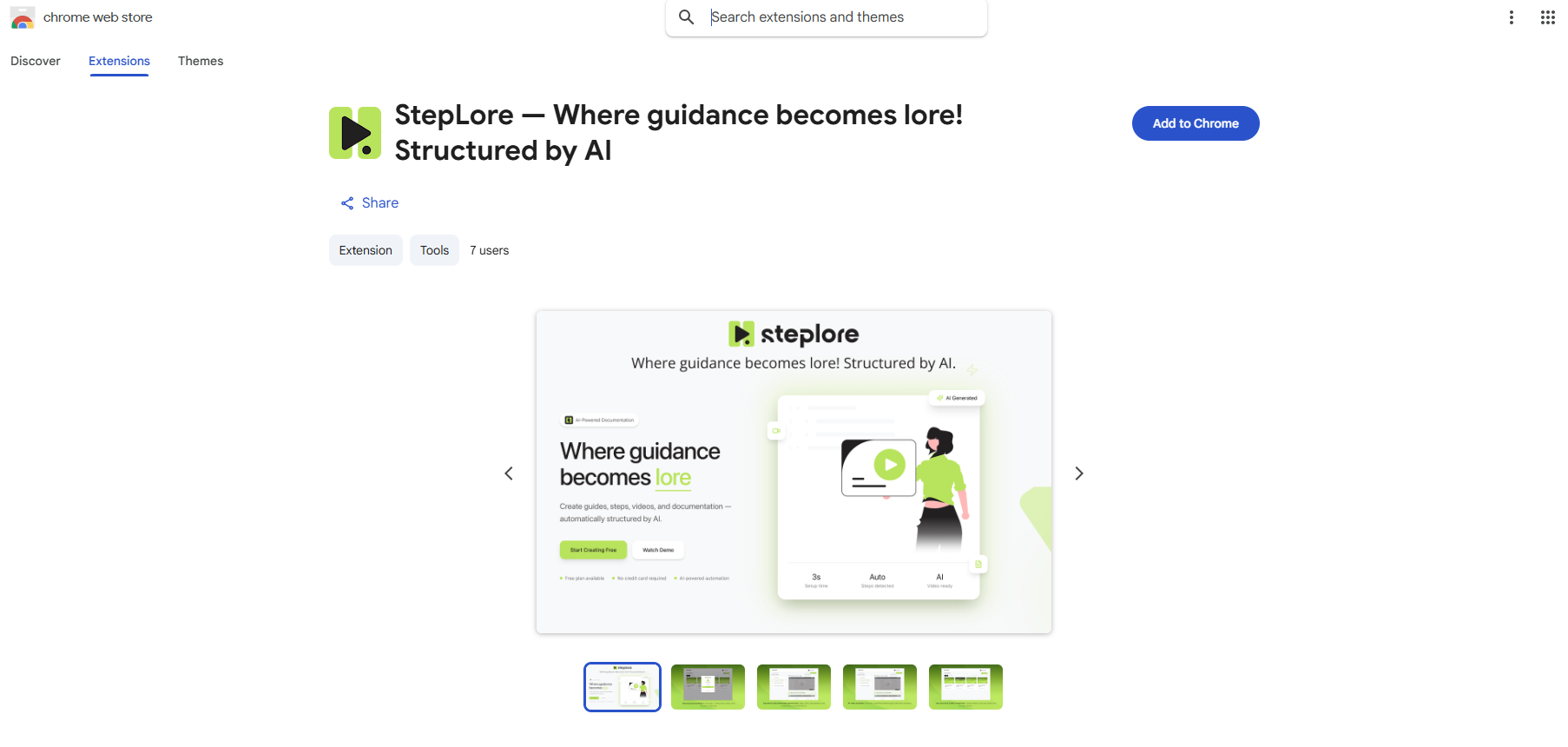
- Install the Steplore browser extension from the Chrome Web Store
- Pin the extension to your browser toolbar for quick access
- Click the Steplore extension icon — this opens the Steplore panel docked to the side of your browser, which stays open as you navigate
Steplore works directly in your browser — no additional software required.
Step 2: Create Your Account or Sign In
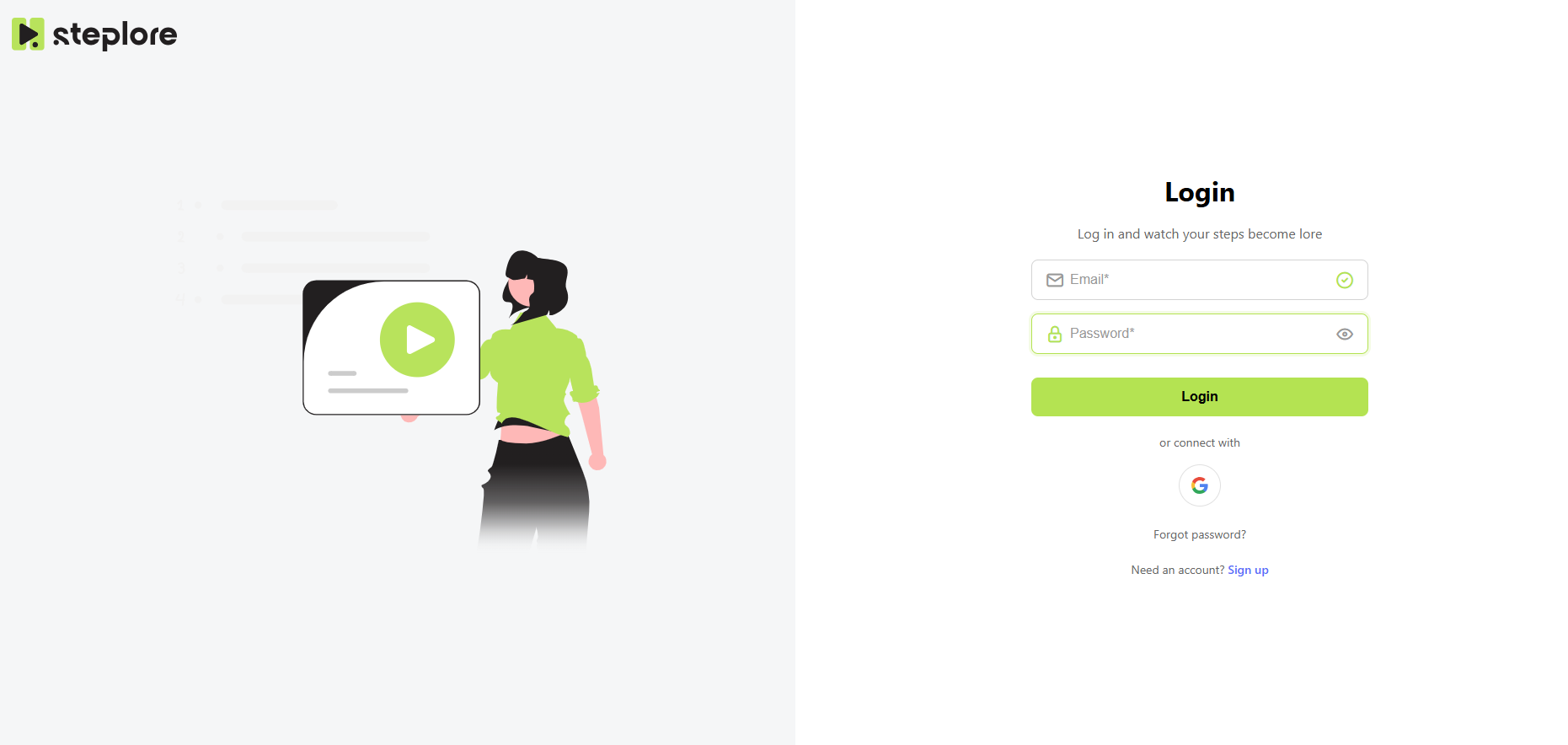
To create your own guides or chatbots, you'll need a Steplore account. If you're not signed in yet, the panel offers two ways to sign up:
- Continue with Google — one click, no separate password to create
- Sign up with email — fill in the registration form (name, email, password) and accept the Terms & Conditions
Already have an account? Use the same option you signed up with to sign back in.
Each account's guides, chatbots, and conversations stay private to that account.
Step 3: Choose What You Want to Create
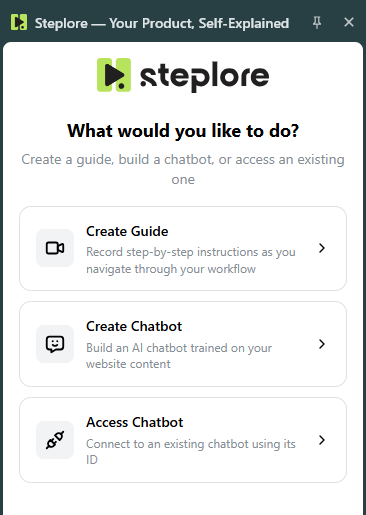
Once signed in, the panel asks "What would you like to create?":
- Create Guide — record step-by-step instructions as you navigate through your workflow
- Create Chatbot — build an AI chatbot trained on your website's content
- Access Chatbot — enter a chatbot ID someone shared with you, to open it directly
Follow Path A below for a guide, or Path B for a chatbot. If you're joining a chatbot someone else built, skip to Path C.
Path A: Create a Guide
A1. Open the Page You Want to Document
- Navigate to the website, web app, or tool you want to document
- Make sure the page is fully loaded
- Click Create Guide in the Steplore panel
A2. Describe Your Guide and Start Recording
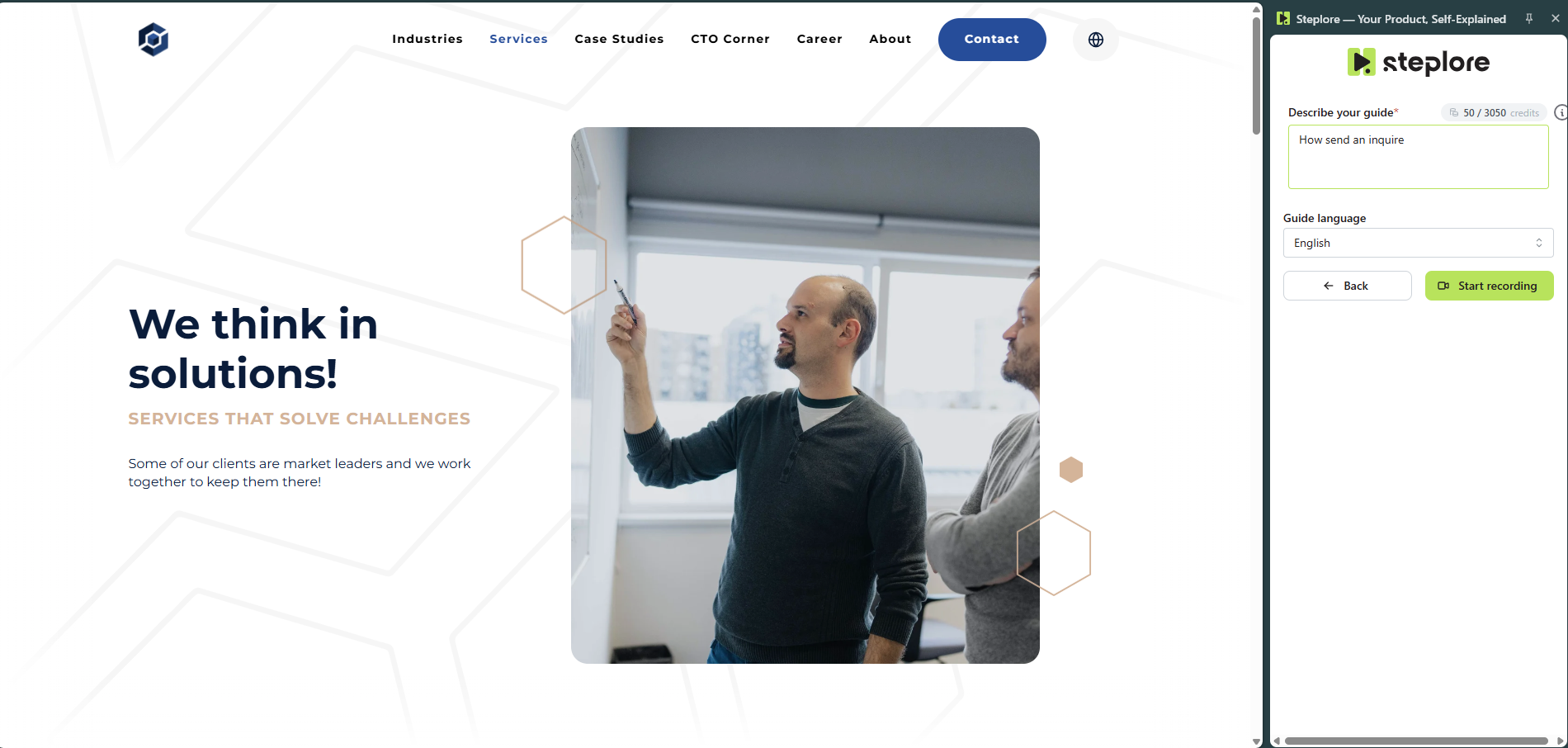
- Enter a short description of what this guide will show Example: "How to share a document in Figma"
- Click Start recording
Steplore is now capturing your workflow.
A3. Walk Through Your Process
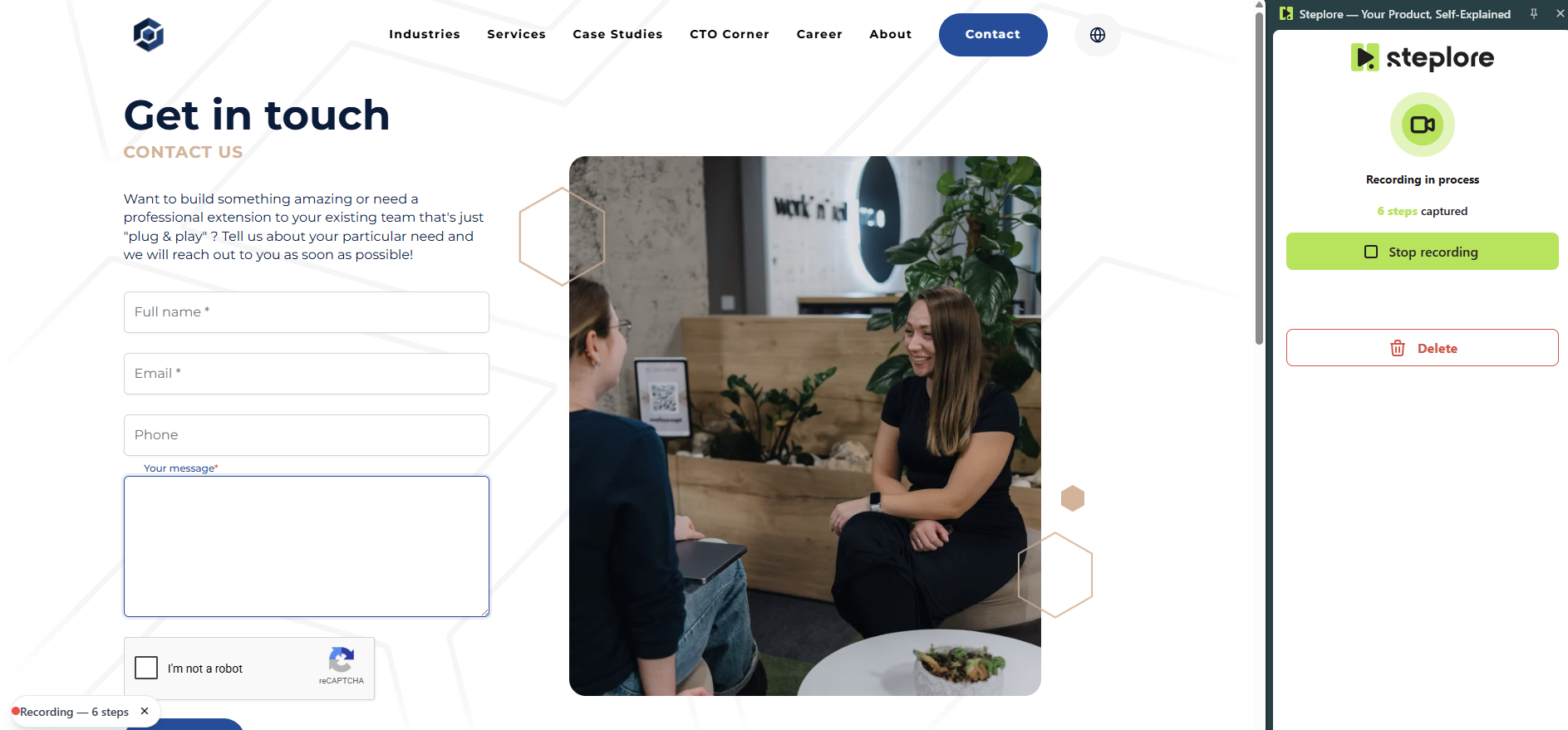
- Perform your workflow as you normally would
- Steplore automatically detects clicks, navigation, and other UI interactions
- A floating control shows the number of steps captured, plus Pause and Stop
When finished, click Stop.
A4. Preview Your Guide (AI Does the Work)
After stopping the recording, Steplore automatically:
- Generates structured steps
- Writes step titles and descriptions
- Captures screenshots for each step
- Creates an AI-generated walkthrough video with voice-over narration
Your documentation is instantly ready.
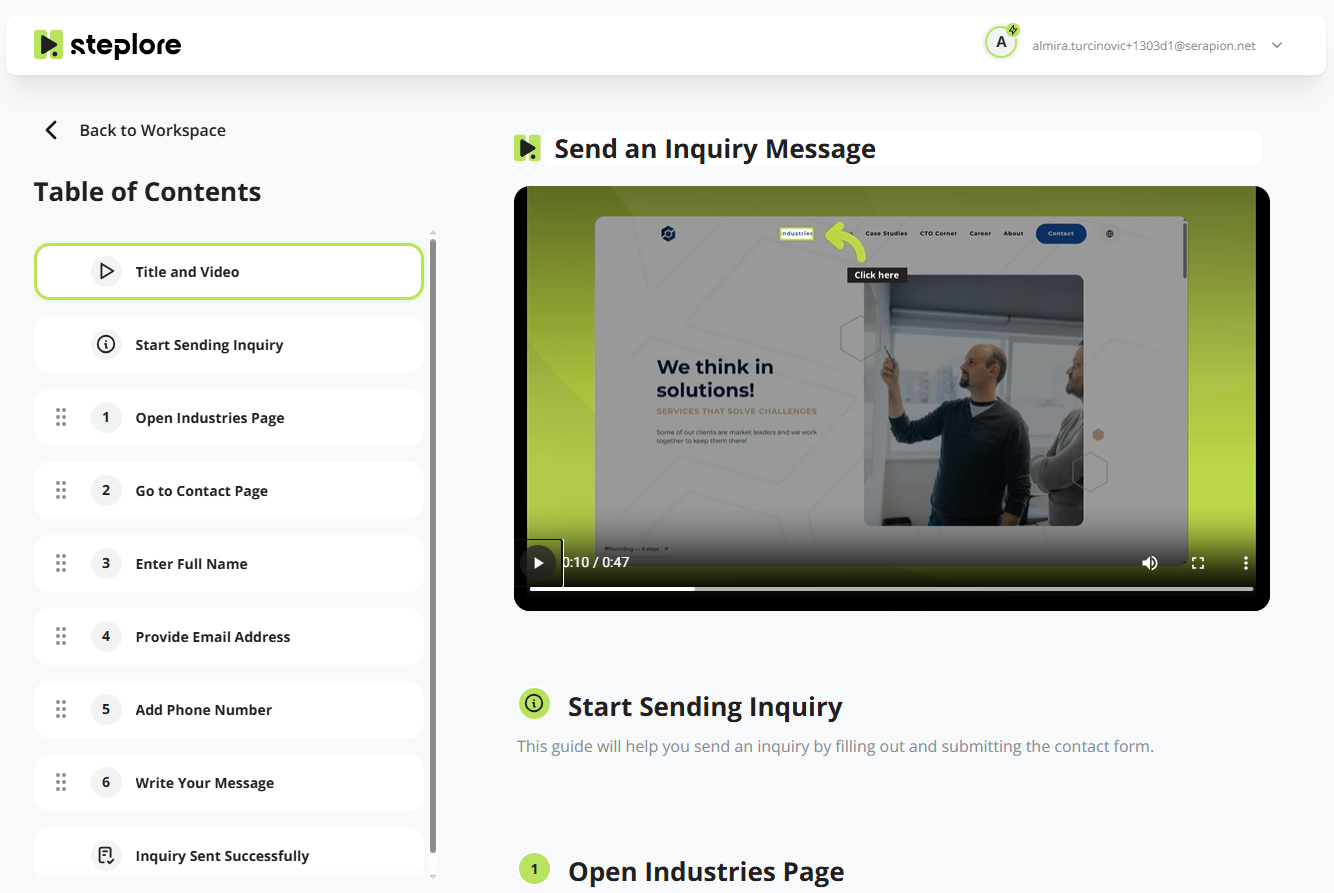
A5. Edit, Preview, and Share
From the guide editor you can:
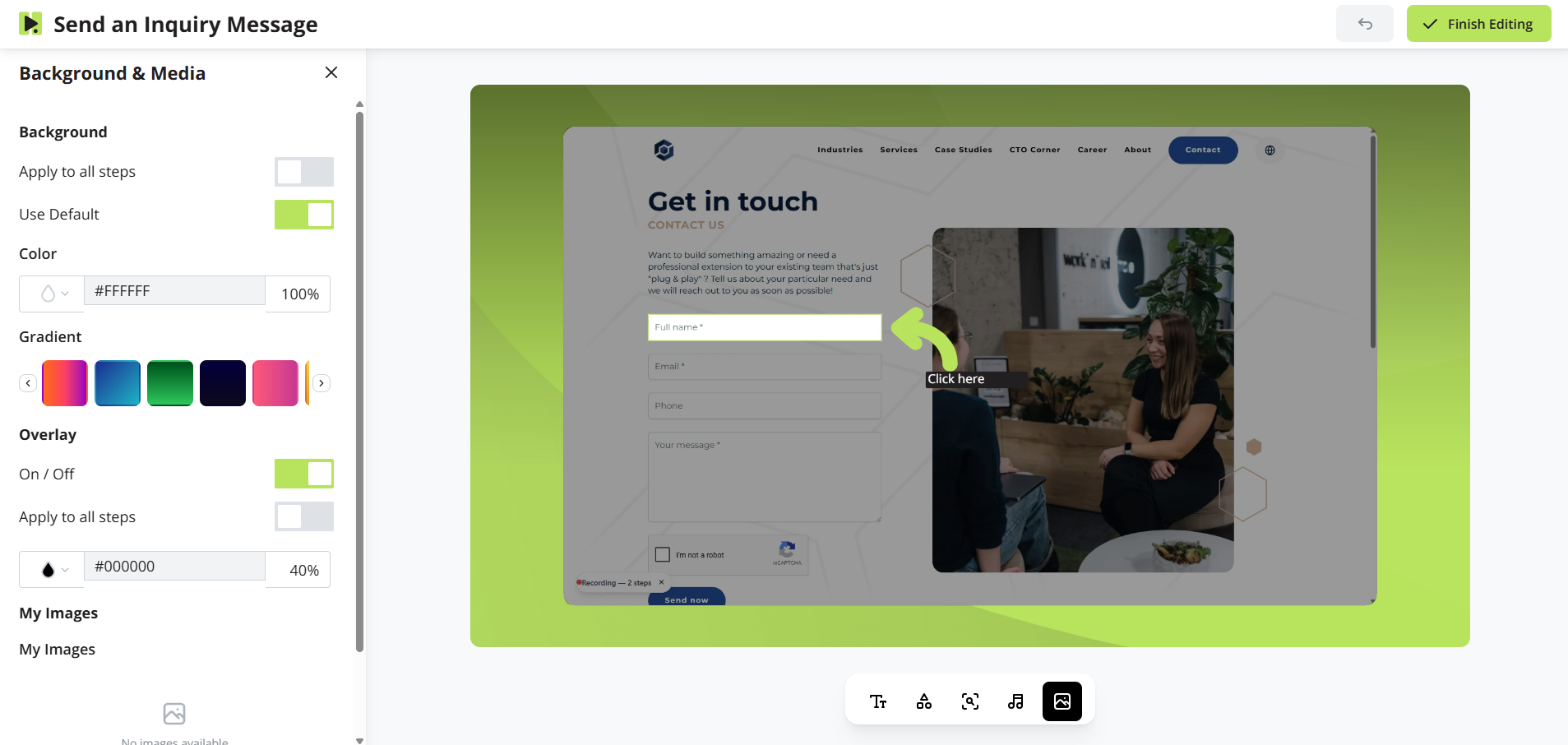
- Edit step titles and descriptions, or refine wording with AI
- Reorder or delete steps
- Preview the generated video
- Add a translated version of the guide for other languages
- Copy a shareable link, or export as PDF, HTML, Confluence, or raw export
Path B: Create a Chatbot
You can start a chatbot from the browser extension (fastest, scoped to the site you're on) or from the Steplore web app (lets you review crawl settings before starting).
B1. Start the Chatbot
From the extension:
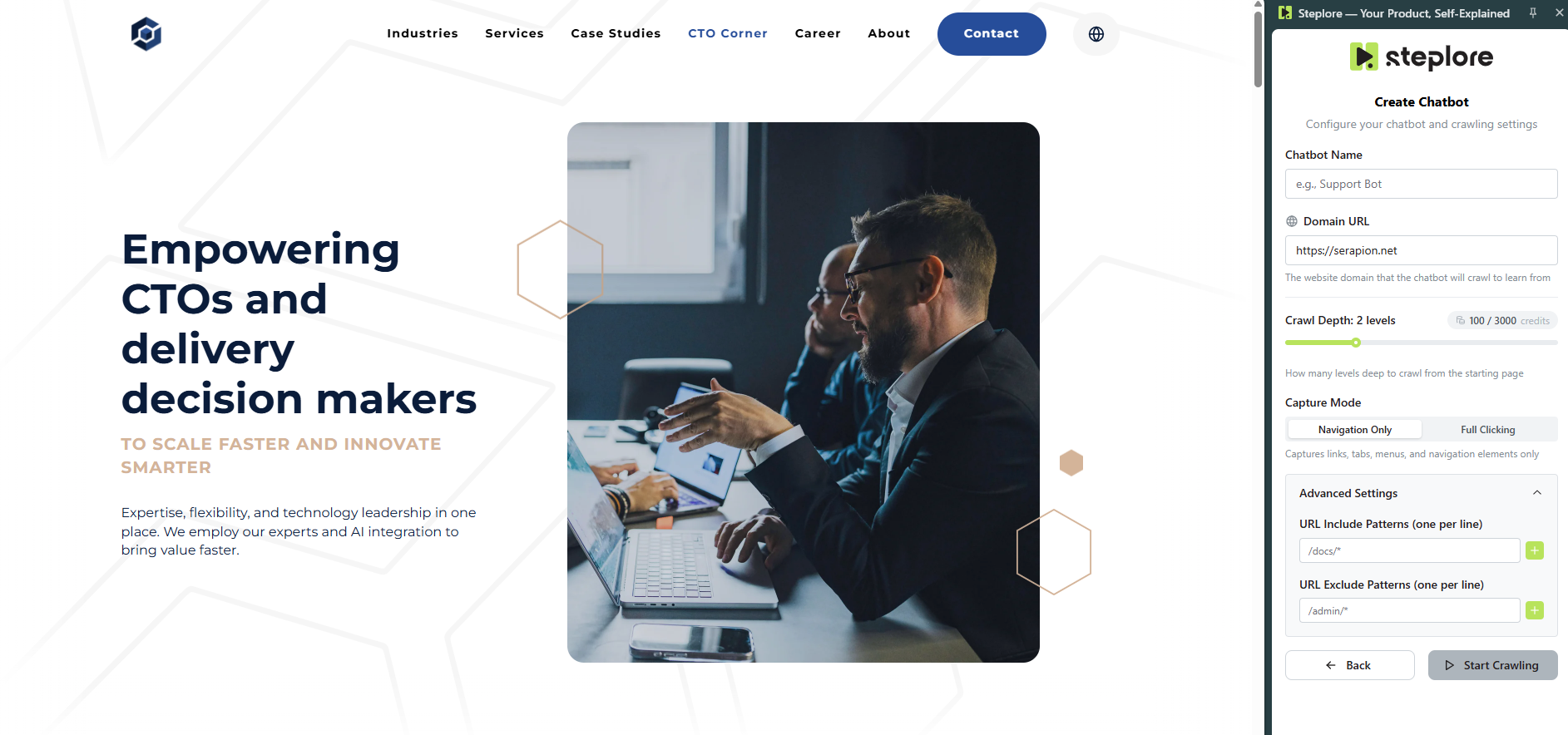
- Click Create Chatbot in the Steplore panel
- Enter a Chatbot Name
- The Domain URL is pre-filled from the site you're currently on — edit it if needed
- Adjust Crawling Configuration if needed: crawl depth, and URL patterns to include or exclude
- Click ▶ Start Crawling
From the web app:
- On the All chatbots tab, click Create new chatbot
- Enter a Chatbot Name and Domain URL, then click Create Chatbot
- The Configure Knowledge dialog opens automatically — set crawl depth, include/exclude patterns, and whether to stay within the same domain
- Click ▶ Start to begin building knowledge now, or close the dialog to leave the chatbot as a Draft and configure it later
B2. Let Steplore Learn Your App
Steplore scans your app to map every screen and interactive element, and builds a searchable knowledge base from what it finds. A progress view shows the percentage complete; you can cancel at any point and keep whatever was captured so far.
When it finishes, your chatbot appears in All chatbots with a Ready status.
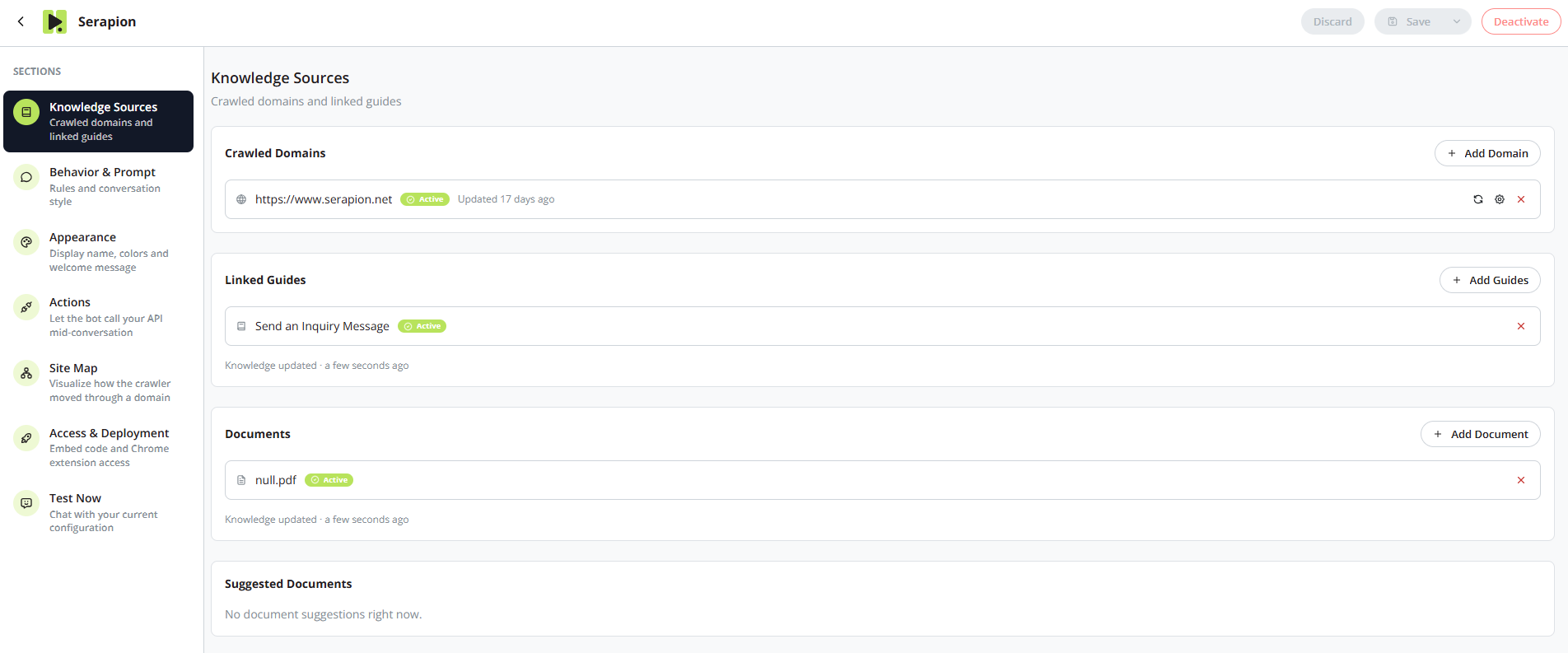
B3. Add More Knowledge (Optional)
Open the chatbot's Settings to strengthen what it knows:
- Link existing guides so the chatbot can answer from documentation you've already created
- Upload documents as an additional knowledge source
- Add more domains to crawl if your product spans multiple sites or subdomains
B4. Configure Behavior and Appearance (Optional)
Still in Settings, you can:
- Chat with the built-in setup assistant to define how your chatbot should behave, in plain language
- Turn on scoped web search if you want the chatbot to answer beyond your own content
- Set a display name and profile image
- Turn on Visual Guidance so actionable answers include a Guide Me button
- Turn on voice so users can talk to the chatbot and hear responses read back
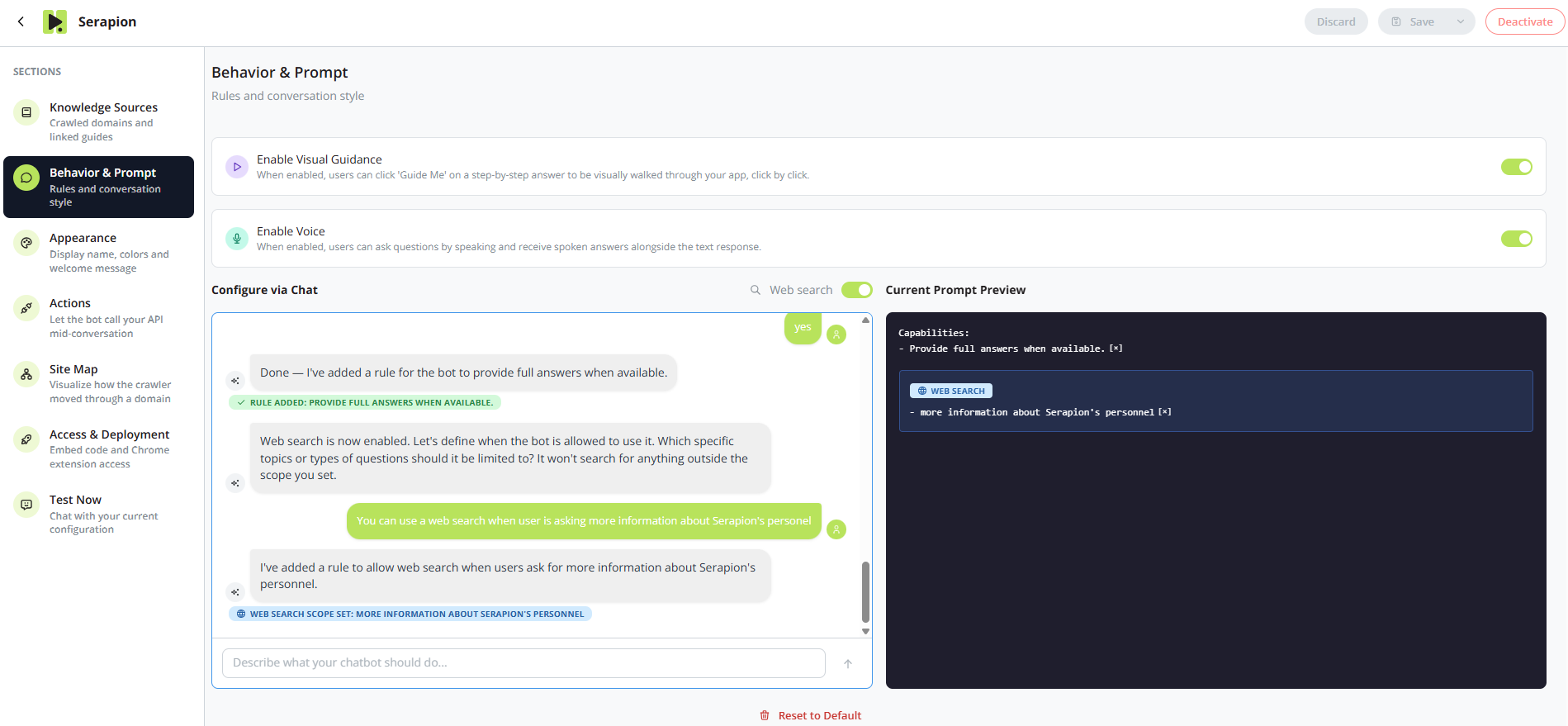
Changes are saved as a draft — use Test Now to try them privately before clicking Activate to make them live.
B5. Share Your Chatbot
In Settings → Access & Deployment, choose one or both:
- Website Embed — copy a short script snippet and paste it into your site
- Chrome Extension — turn this on to let users reach your chatbot from the Steplore extension, then copy and share its Chatbot ID
Path C: Access a Chatbot Someone Shared With You
- Open the Steplore extension
- If you're signed in, click Access Chatbot; if not, choose Enter Chatbot ID — no account needed
- Enter the ID you were given and continue
You're now chatting with that chatbot directly.
What You Get with Steplore
- Instant step-by-step guides, with AI-generated videos and narration
- An AI chatbot trained on your app, your documents, and your existing guides
- In-app visual guidance that walks users through real tasks, click by click
- Multiple ways to share: public link, PDF, HTML, Confluence export, website embed, or a simple chatbot ID
- Ideal for:
- User guides and SOPs
- Onboarding documentation
- Product walkthroughs
- Internal knowledge sharing
- Self-service customer support
Steplore turns your everyday work into guides and support your users can rely on — automatically.